
Skills
Package expert instructions, coding guidelines, and process documentation into reusable modules for your AI agents
Skills are your way of giving AI agents domain expertise. Located in the Skills panel within the AI Agent node editor, Skills let you create, manage, and attach knowledge modules — covering anything from coding standards and troubleshooting runbooks to business process documentation — so your agents respond with context-specific accuracy.
What You Can Do with Skills
Capture Domain Expertise
Package specialized knowledge — coding guidelines, API references, troubleshooting runbooks, compliance rules — into standalone skill modules that any agent can reference.
Reuse Across Agents
Skills are shared across all agents in your workspace. Create a skill once and attach it to any agent that needs that knowledge.
Choose Your Creation Method
Create skills the way that works best for you: write instructions directly, upload existing documentation files, or let AI generate a skill from a conversation.
Accessing Skills
To open the Skills panel:
- Open your workflow and click the AI Agent node to open the AI Agent Editor.
- Click the Skills icon (lightning bolt) in the top toolbar.
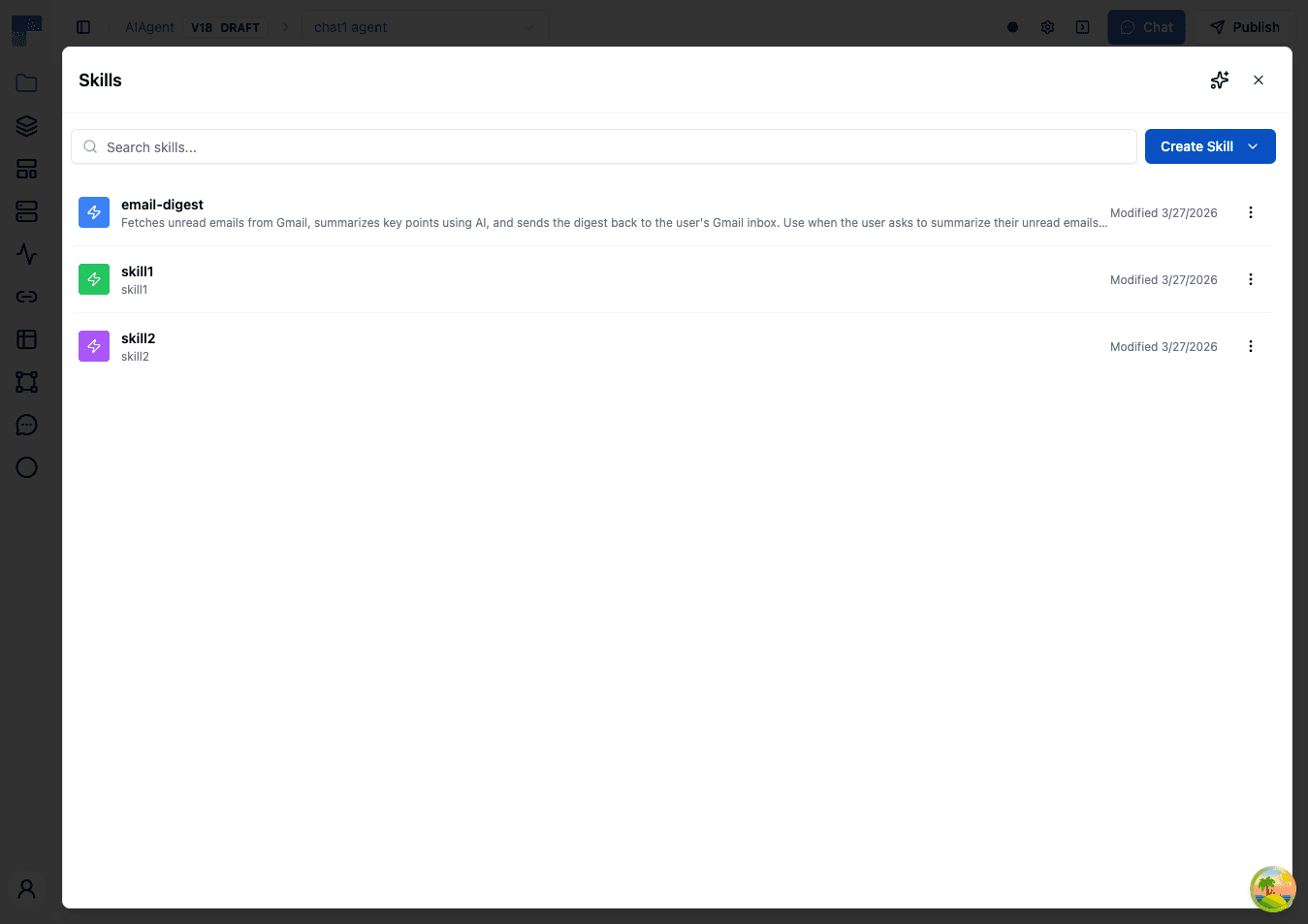
The Skills panel displays all available skills with a search bar and a Create Skill button.
Viewing Skills
The Skills list shows all skills in your workspace. Each skill displays:
| Field | Description |
|---|---|
| Name | The skill's name |
| Description | A brief summary of what the skill covers |
| Modified Date | When the skill was last updated |
Use the search bar at the top to filter skills by name.
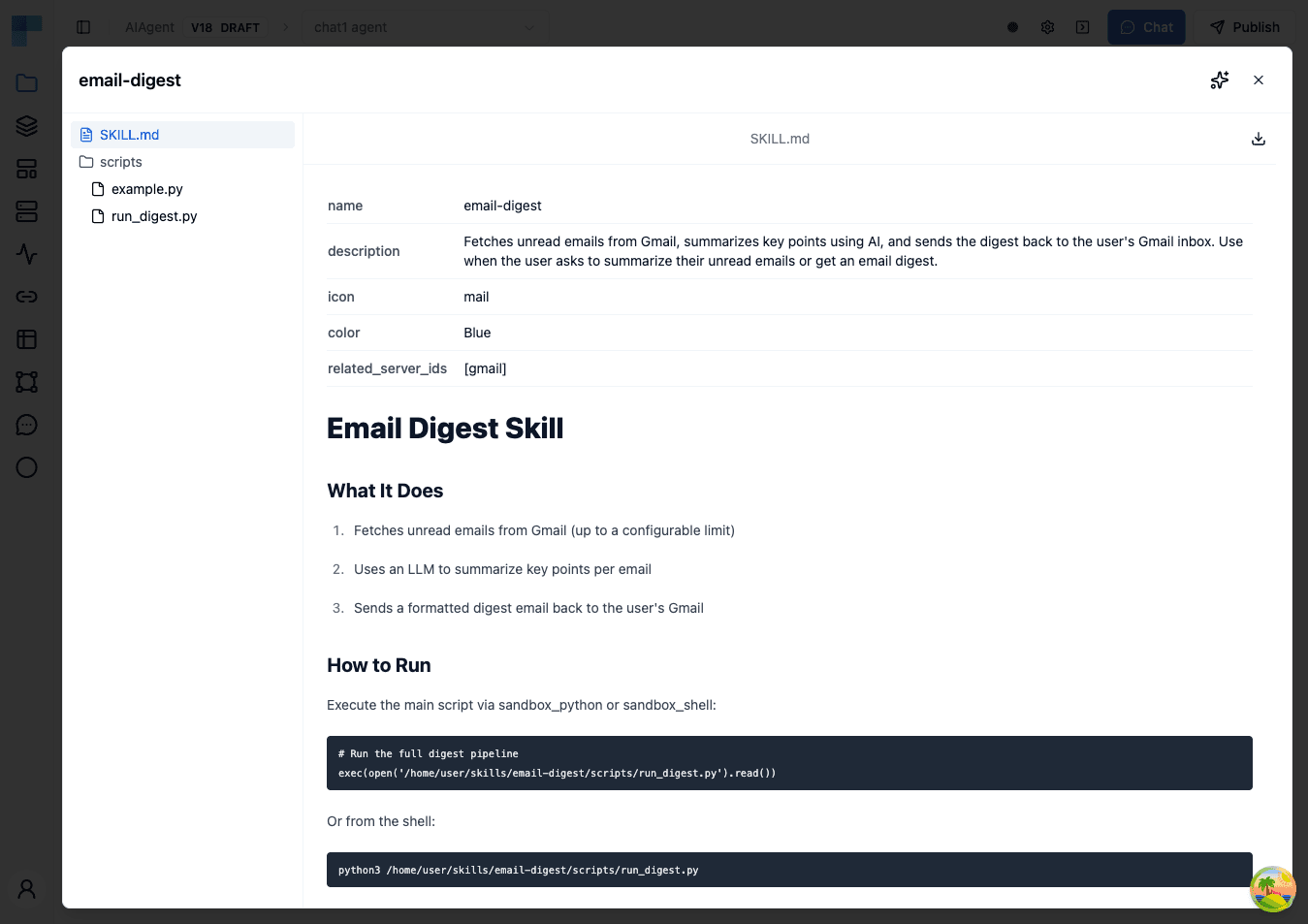
Click on any skill to view its contents in the detail view. The detail view includes:
- A file tree on the left showing all files and folders in the skill archive
- A content viewer on the right with syntax highlighting for code files and rendered markdown for
.mdfiles - A Download button (top-right corner) to download the entire skill as a
.skillfile
Markdown files display YAML frontmatter as a metadata table above the rendered content.
Creating Skills
Click the Create Skill dropdown button to choose a creation method:
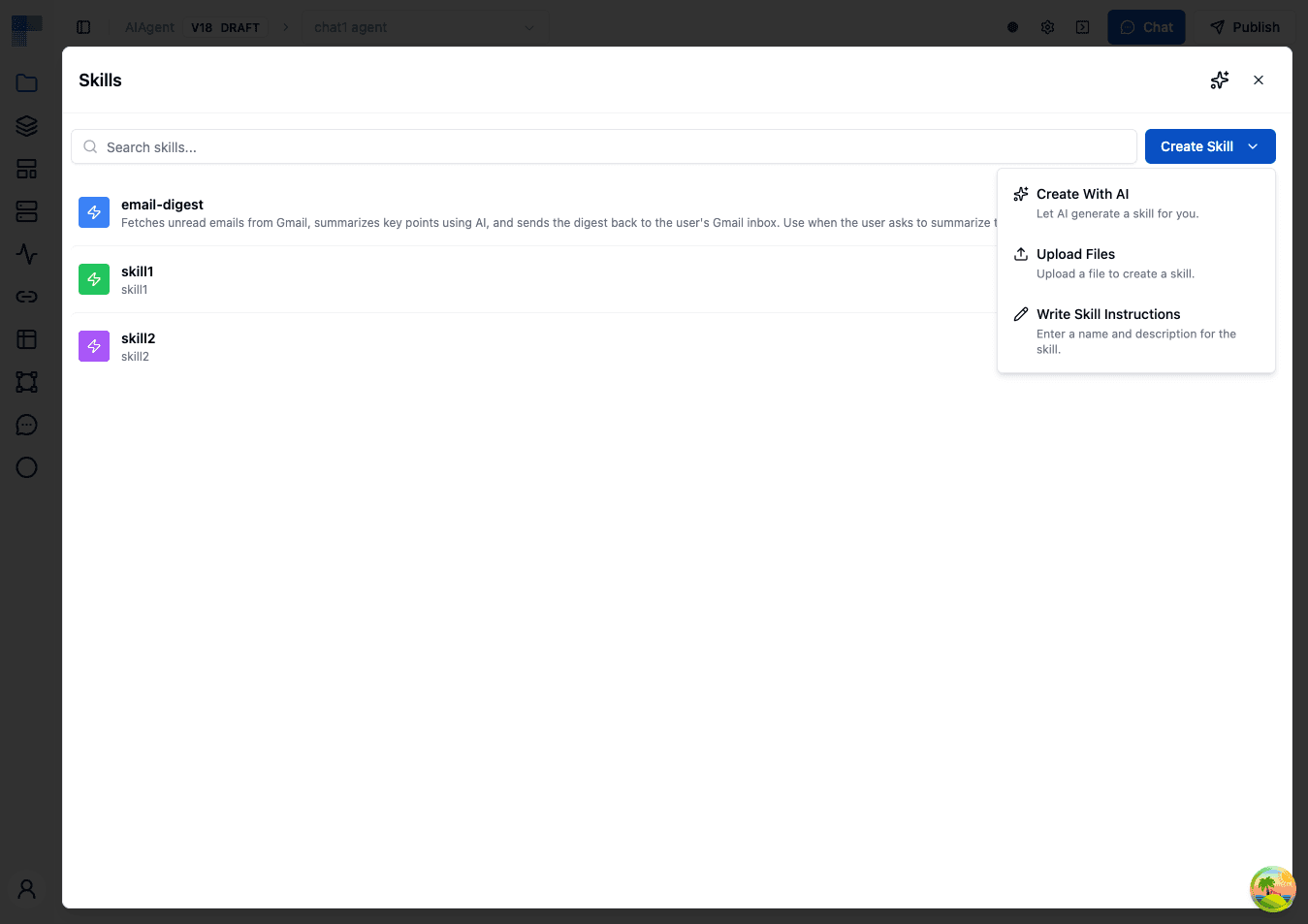
Write Skill Instructions
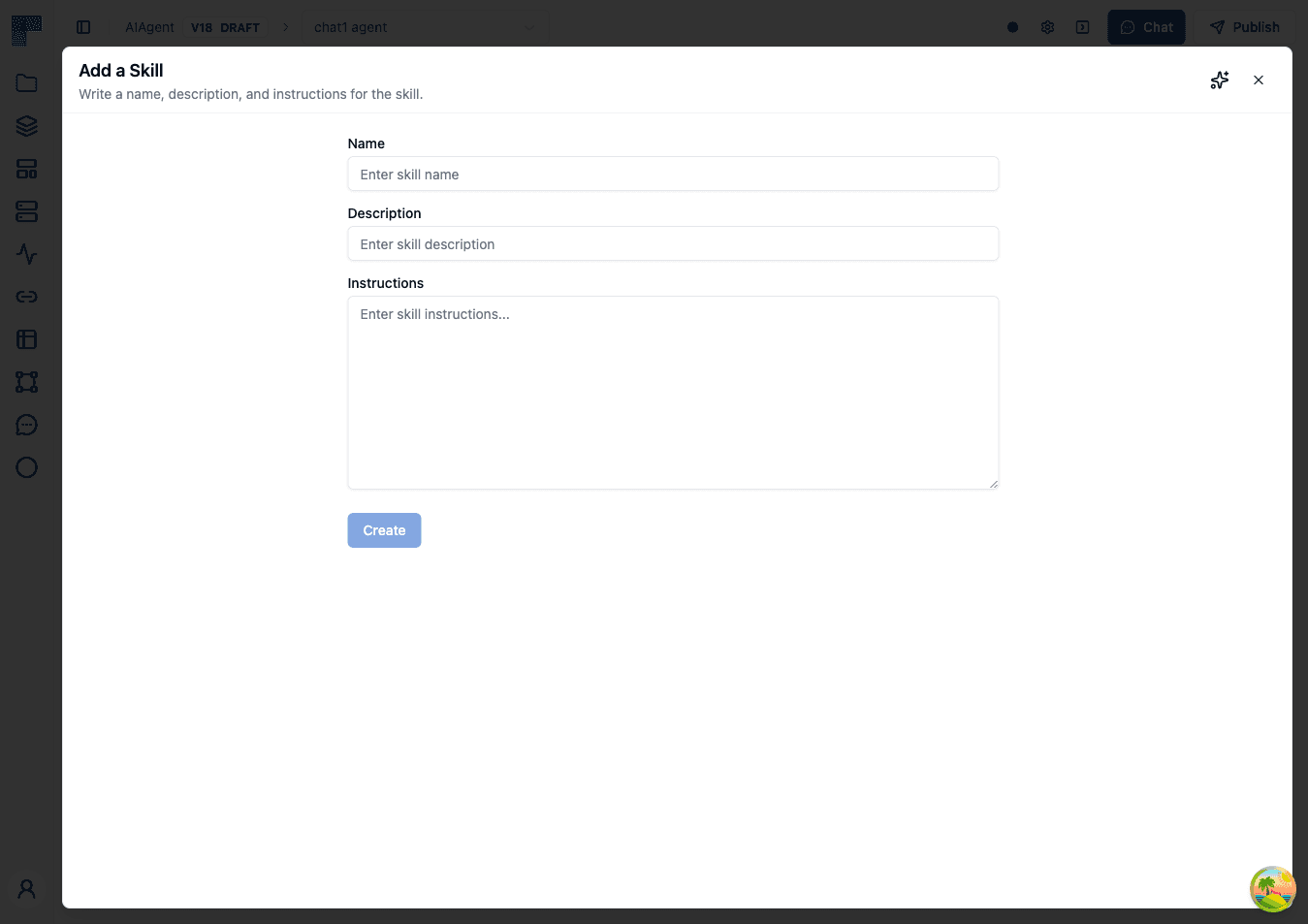
The simplest way to create a skill. Enter a name, description, and markdown instructions directly in the editor.
| Field | Description |
|---|---|
| Name | A descriptive name for the skill (e.g., "Email Triage Rules") |
| Description | A short summary of what the skill covers — helps agents decide when to use it |
| Instructions | The full skill content in markdown format. Include guidelines, examples, rules, and any context the agent needs. |
Click Create to save. The instructions are packaged into a skill archive and added to your skills library.
Upload Files
Upload existing documentation files to create skills. This is useful when you already have knowledge documented in files.
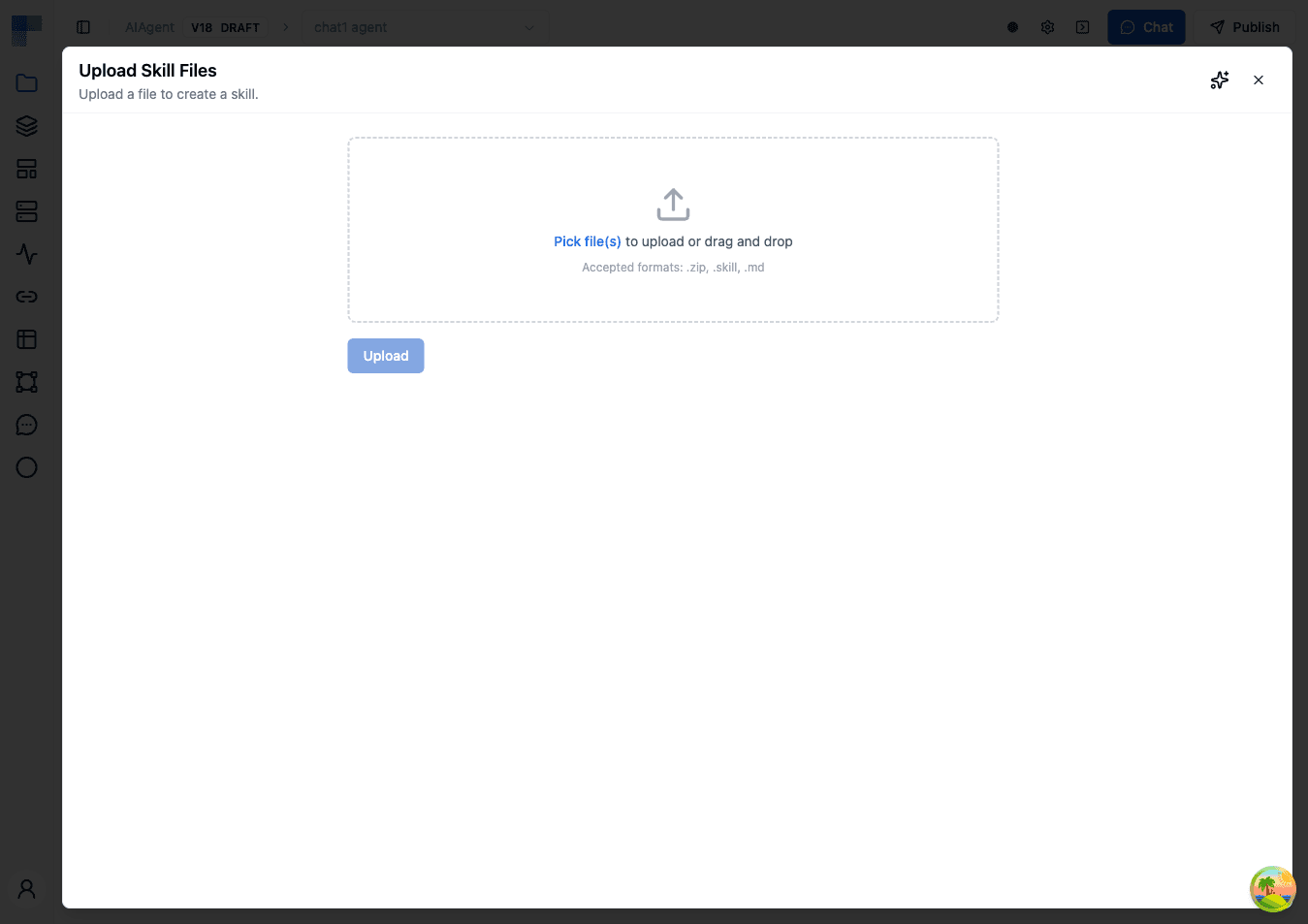
Supported file formats:
| Format | Description |
|---|---|
.zip | ZIP archive containing multiple files (documentation, code, configs) |
.skill | ByteChef skill archive format (ZIP-based) |
.md | Markdown file — automatically converted into a skill |
You can drag and drop files or click to browse. Multiple files can be uploaded at once — each file creates a separate skill. For .md files, the skill name and description are automatically extracted from YAML frontmatter if present.
Create With AI
Let AI generate a skill for you through a conversational interface. Describe the domain knowledge you want to capture, and the AI assistant will help you build a comprehensive skill.
Managing Skills
Downloading a Skill
You can download a skill in two ways:
- From the detail view: Click the Download button in the top-right corner to download the entire skill as a
.skillfile (ZIP archive). - From the skill list: Click the menu (three dots icon) on any skill and select Download.
Downloaded .skill files can be shared with others or uploaded to a different workspace.
Skill Actions
Each skill in the list has a menu (three dots icon) with the following actions:
| Action | Description |
|---|---|
| Download | Download the skill as a .skill file (ZIP archive) |
| Rename | Change the skill's name and description |
| Delete | Permanently remove the skill |
Skill File Format
Skills are stored as ZIP archives containing one or more files. When you create a skill using the "Write Skill Instructions" method, your instructions are saved as a markdown file inside the archive.
Frontmatter
Markdown files in skill archives can include YAML frontmatter to define metadata:
---
name: email-triage-rules
description: Rules for categorizing and prioritizing incoming support emails
---

# Email Triage Rules

## Priority Levels
...
When uploading a .md file, ByteChef automatically extracts the name and description fields from frontmatter to populate the skill metadata.
Archive Structure
A skill archive can contain any combination of files:
my-skill.skill
├── instructions.md      # Main skill instructions
├── examples/
│   ├── good-response.md # Example of a good response
│   └── bad-response.md  # Example of what to avoid
├── reference/
│   └── api-spec.json    # API reference documentation
└── templates/
    └── email-template.txt
All files in the archive are available to the agent when the skill is attached.
Writing Effective Skills
Be Specific and Structured
Write clear, well-organized instructions. Use headings, bullet points, and tables to make the content easy for the agent to parse.
# Customer Support Escalation Rules

## When to Escalate
- Customer mentions legal action
- Issue involves data loss or security breach
- Customer has been waiting more than 48 hours
- Issue requires access to internal systems

## Escalation Process
1. Acknowledge the customer's concern
2. Inform them that a specialist will follow up
3. Create a ticket with priority: HIGH
4. Include full conversation history
Include Examples
Show the agent what good and bad responses look like. Concrete examples are more effective than abstract rules.
Define Boundaries
Specify what the agent should and should not do. Clear boundaries prevent the agent from overstepping or making assumptions.
Use Descriptive Names
Choose skill names that clearly communicate the skill's purpose. The name and description help the agent understand when to apply the skill's knowledge.
Best Practices
Start with Core Knowledge
Begin by creating skills for your agent's most critical responsibilities. Add specialized skills as you identify gaps in agent performance.
Keep Skills Focused
Each skill should cover a single domain or topic. Smaller, focused skills are easier to maintain and can be combined as needed.
Update Regularly
Review and update skills when processes change, new edge cases are discovered, or agent performance reveals gaps in the current instructions.
Test with Evals
Use Evals to verify that your skills are working as intended. Create test scenarios that exercise the knowledge in your skills and confirm the agent responds correctly.
Version Control Your Skills
Download skills as .skill files and store them in version control alongside your code. This lets you track changes, review updates, and roll back if needed.
Frequently Asked Questions (FAQs)
How many skills can I create?
There is no hard limit on the number of skills you can create. However, keep in mind that attaching many large skills to a single agent increases the context size and may affect performance.
Can I share skills between agents?
Yes. Skills are shared across your workspace. Any skill you create is available to attach to any AI agent in any workflow.
What file types are supported in skill archives?
Skill archives can contain any file type. The built-in viewer provides syntax highlighting for common formats including JavaScript, TypeScript, Python, Java, JSON, YAML, HTML, CSS, SQL, and Markdown.
How are skills used by the agent at runtime?
When a skill is attached to an agent, its contents are included in the agent's context. The agent can reference the skill's instructions, examples, and documentation when generating responses.
Can I edit a skill after creating it?
You can rename a skill and update its description. To modify the skill's contents, download it, edit the files, and re-upload the updated archive.
What happens if I delete a skill that's attached to an agent?
The skill is removed from all agents that reference it. The agents will continue to function but without the knowledge that skill provided.
How is this guide?
Last updated on