
Profile
Your own account - name and email, password, two-factor authentication, and linked social accounts.
Your Account → Profile is where you change the things that belong to you rather than to the deployment. It is reachable by every signed-in user; nothing on it requires an administrator.
The page is headed Your profile and stacks four sections.
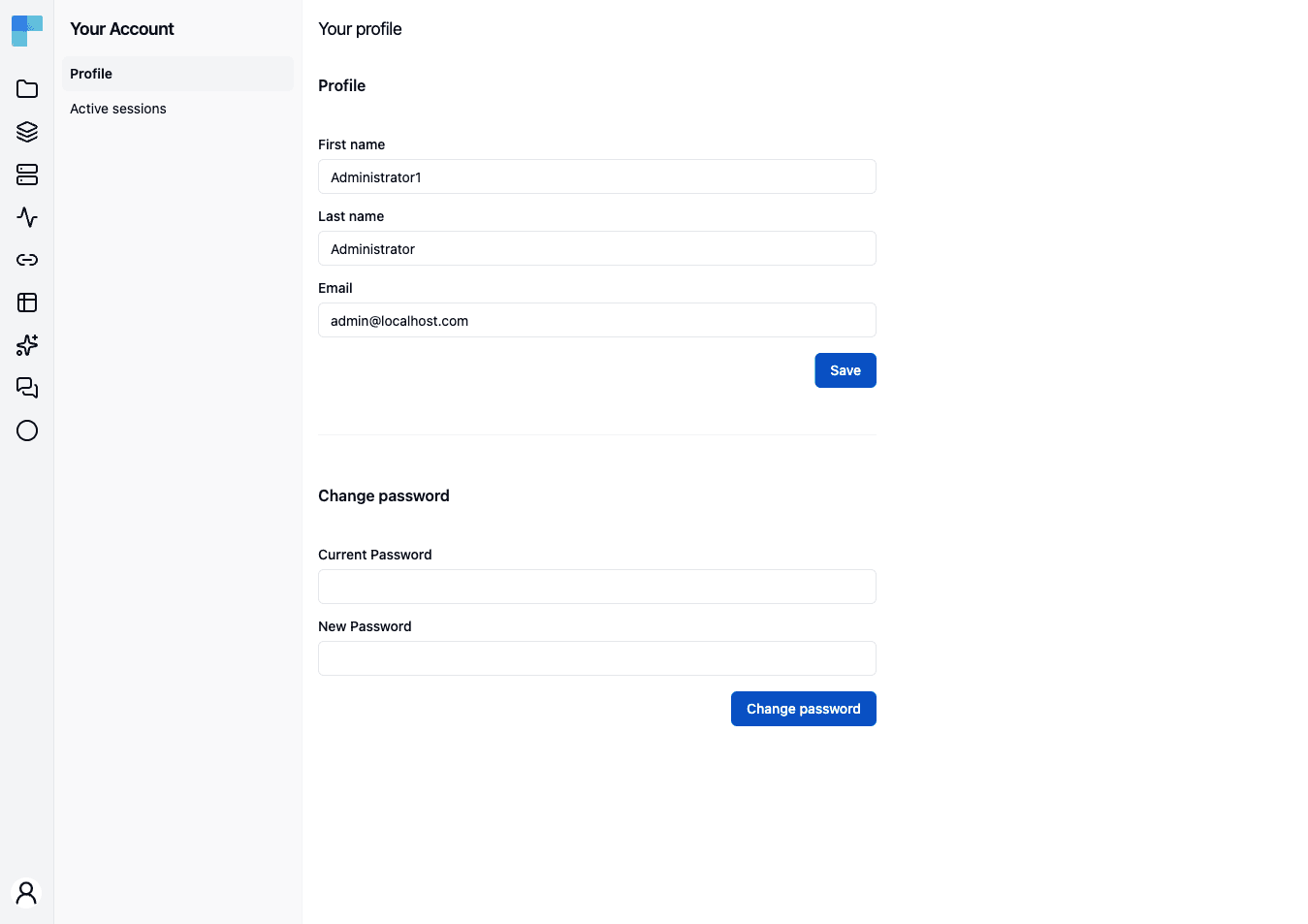
Profile
Three fields, all editable:
| Field | Notes |
|---|---|
| First name | Required. |
| Last name | Required. |
| Required, must be a valid address, at most 254 characters. |
Click Save; an "Account has been updated." toast confirms it. Changing your email to one another account already uses is rejected. Your login name is not shown and is not editable here - editing the email does not change it.
Change password
Enter your Current password and a New password and click Save. A "Password has been changed." toast confirms it.
The new password is validated server-side and must be 8 to 100 characters with at least one uppercase letter and at least one digit. The form's own check is laxer than that, so a password the form accepts can still be rejected on save.
There is no "log out other sessions" step attached to a password change - see Active Sessions for that.
Two-Factor Authentication
Coming soon
Two-factor authentication is on the upcoming release track and is not yet available in the latest released version of ByteChef.
Described as "Add an extra layer of security to your account using an authenticator app."
- Click Set up 2FA. The section shows a QR code and the secret in text form, for authenticator apps that cannot scan.
- Scan it, then type the rotating code into the verification field and click Verify & Enable. Cancel abandons the setup.
- Once enabled, the section reads "Two-factor authentication is enabled." and offers Disable 2FA, which asks for your password and a current code before turning it off.
Linked Accounts
Coming soon
Social login is on the upcoming release track and is not yet available in the latest released version of ByteChef.
Described as "Manage external identity providers linked to your account."
With no provider linked, the section offers Link Google and Link GitHub, each starting that provider's authorization flow. With one linked, it shows the provider name and the account identifier it returned, plus an Unlink button that confirms first.
Unlink is disabled while your account has no password, and the section says so: "Set a password before unlinking your provider to maintain account access." Set a password in Change password first, or you would be unlinking the only way you can sign in.
This is per-user linking of your account. Federating a whole organization's identities is a different, administrator-level feature - see Identity Providers.
How is this guide?
Last updated on