
Data Tables
Create typed relational tables inside ByteChef and read or write them from workflows - no external database required.
Data Tables give you first-class relational storage inside ByteChef. Create a table with typed columns, manage rows in a spreadsheet-like grid (or by importing a CSV), and read or write that data from your workflows - without standing up an external database.
Use them for lookup tables, configuration, queues, feature flags, deduplication keys, or any small structured dataset your automations need to share.
Data Tables are workspace-scoped and per-environment: each table belongs to a workspace, and the rows you see depend on the selected environment (Development, Staging, Production).
Create a table
- In the Automation workspace, open Data Tables from the sidebar.
- Click New Table.
- Enter a name and an optional description.
- Define at least one column - give it a name and a type (see below).
- Click Create.
Every table automatically has an id column that uniquely identifies each row, so id is reserved and can't be used as a column name.
Column types
| Type | Stores |
|---|---|
| String | Text |
| Number | Decimal numbers |
| Integer | Whole numbers |
| Boolean | true / false |
| Date | A calendar date |
| Date Time | A date and time |
Values are coerced to the column's type, so a row written from a workflow or imported from CSV is stored in the correct shape.
Manage columns
Open a table and use its column menu to:
- Add a column - pick a name and type.
- Rename a column.
- Delete a column - removes that column's values from every row.
Manage rows
The table opens in a spreadsheet-like grid where you can:
- Add a row - fill in the new empty row at the bottom.
- Edit a cell - click it and type; changes save when you move off the cell. Each cell uses an editor matched to its column type (text, number, checkbox, date, or date-time picker).
- Delete rows - select one or more with the row checkboxes and delete them.
- Import a CSV - from the grid's ⋮ actions menu, bulk-load rows from a file whose header matches your column names.
- Export a CSV - from the same ⋮ menu, download the current rows.
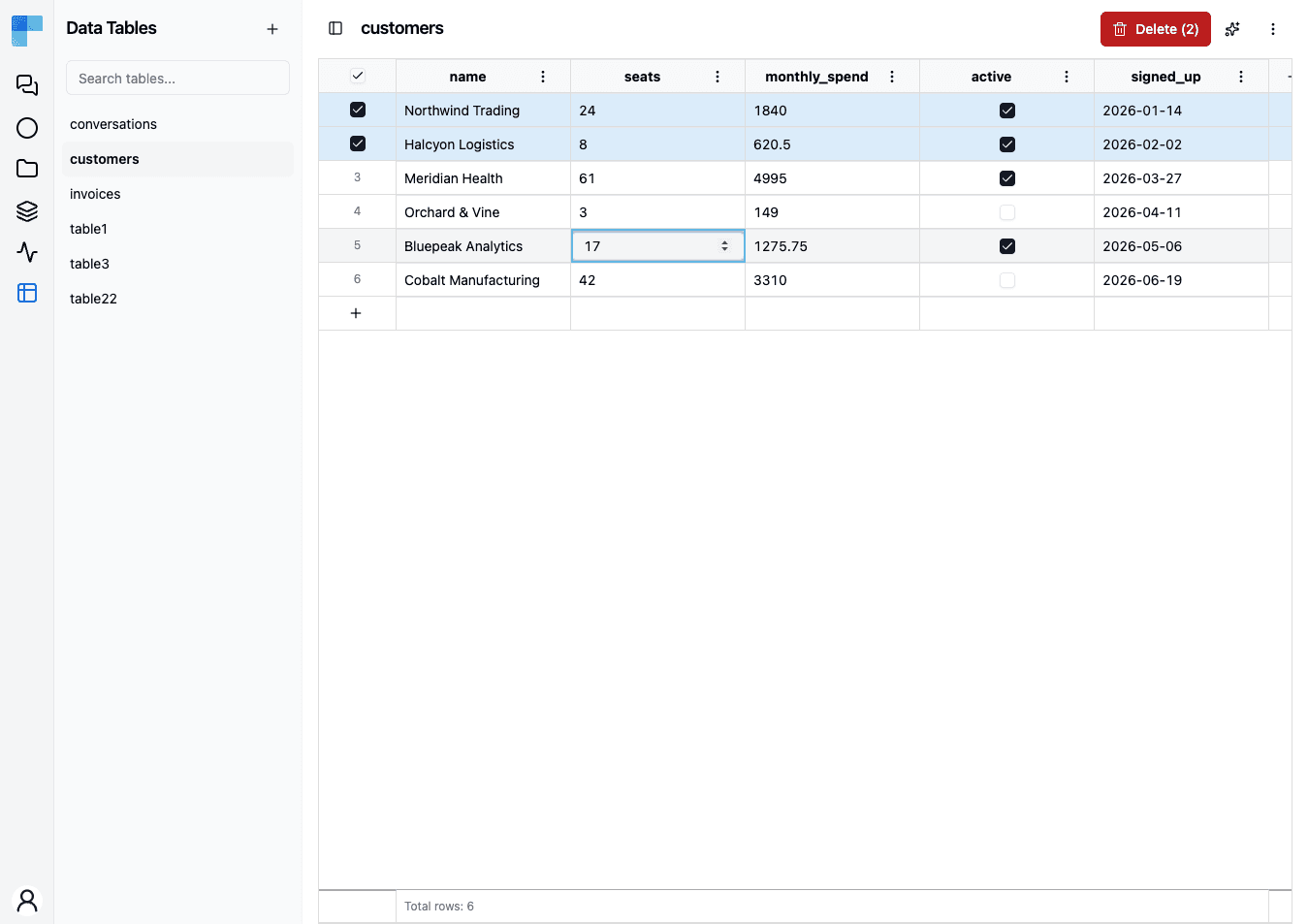
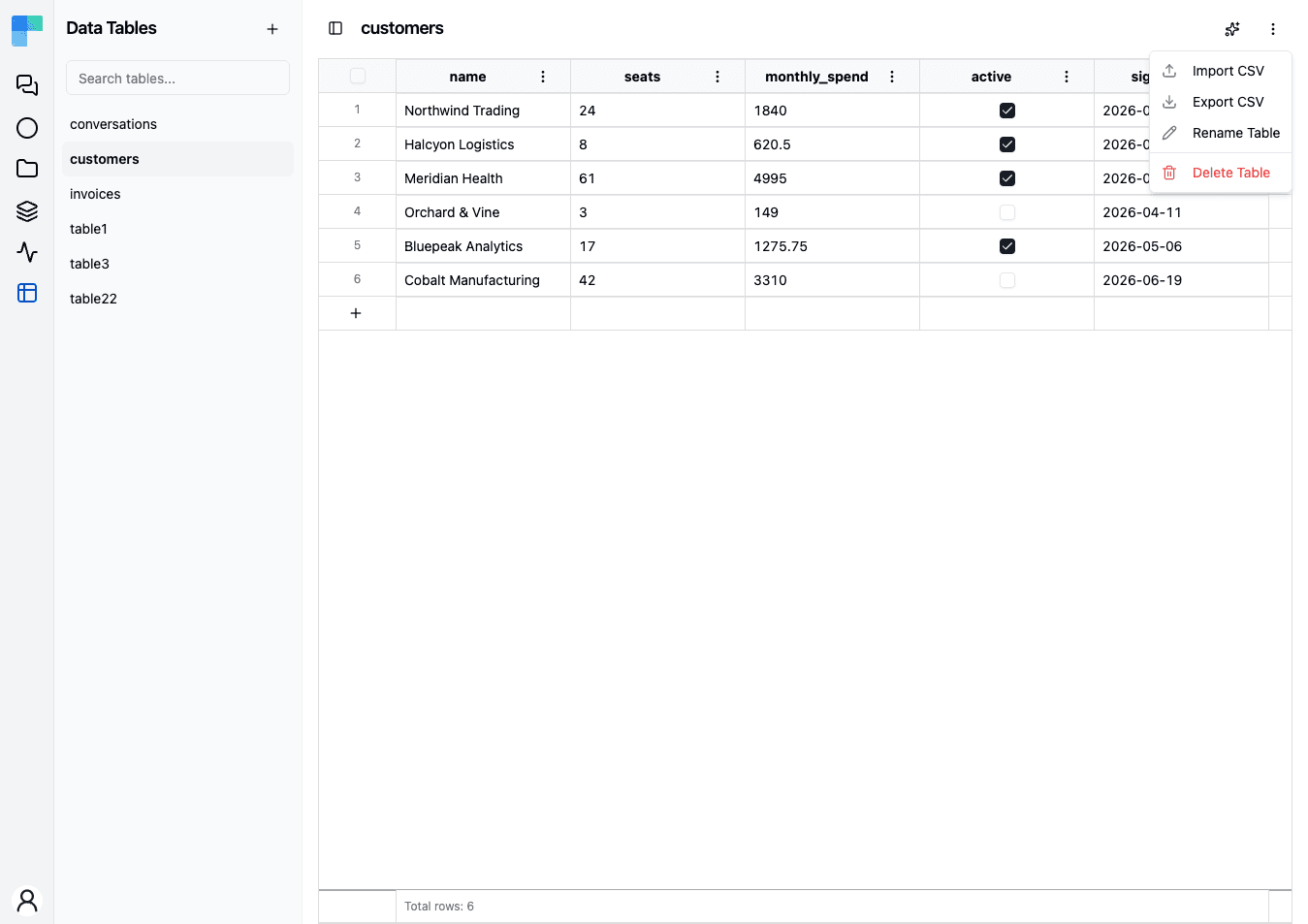
Larger tables load more rows as you scroll. Use tags to organize tables once you have several.
On the Data Tables list page you can rename, duplicate, or delete a table from its row, and filter the list by tag from the left sidebar.
Use a table in workflows
Add the Data Table component to a workflow to read and write your tables as part of an automation. Select the target table, and the action's inputs adapt to that table's columns.
Actions
| Action | What it does |
|---|---|
| Create Records | Insert one or more new rows |
| Get Record | Fetch a single row by its id |
| Find Records | List rows from a table, with Limit and Offset for paging |
| Update Record | Update an existing row by its id |
| Delete Records | Delete rows |
| Clear Table | Remove every row from the table |
Select the table on any action and its inputs adapt to that table's columns.
Coming soon. Filtering and sorting on Find Records - conditions such as
status equals qualified or amount between 100 and 500, plus an order-by - are on the upcoming
release track. In the latest released version Find Records returns rows in insertion order and
you narrow the result with Limit and Offset, or fetch a known row with Get Record.
Triggers
A workflow can also start in response to a row change:
- Record Created - a new row was added
- Record Updated - a row was changed
- Record Deleted - a row was removed
This makes Data Tables a lightweight event source - for example, "when a row is added to the Customers table, send a welcome email."
Scope and access
- Workspace-scoped - a table is available to every project and workflow in its workspace.
- Per-environment - the rows are tied to the selected environment, so Development data stays separate from Production.
- Workspace membership - a table is reachable by the members of its workspace. There is no per-operation role split for data tables in the latest released version: a member who can open the workspace can read and write its tables. Finer-grained viewer/editor enforcement is on the upcoming release track.
Storage limits
Coming soon. Storage limits are on the upcoming release track and are not yet enforced in the latest released version of ByteChef.
The total size of all data tables in a tenant is capped - by default at 50 MB. As usage approaches the cap, a warning alert appears in the Data Tables UI; once the cap is reached, writes that would grow the data (inserting rows, importing CSV, updating rows) are rejected with a limit-exceeded error until space is freed.
Self-hosted administrators can change or remove the cap with the BYTECHEF_DATA_TABLE_MAX_SIZE_BYTES environment variable (0 = unlimited).
When to use a Data Table
A Data Table is a small relational store you get without provisioning anything. That makes it the right shape for some jobs and the wrong shape for others.
Patterns it fits
| Use case | How to model it |
|---|---|
| Lookup tables - map a code to a label, an SKU to a price, a country to a region. | One row per mapping, looked up with Find Records. Needs the filtering above; until it ships, keep the mapping small enough to read in one page and match it in the workflow. |
| Configuration data - regional overrides, per-tenant knobs. | One row per configuration key. |
| Feature flags - turn workflow behavior on and off without republishing. | A Boolean column keyed by flag name. |
| Work queues - items pending processing. | Insert on enqueue; Find Records then Delete Records on consume. Consuming a filtered slice of the queue needs the filtering above. |
| Deduplication keys - record processed external IDs so redeliveries are ignored. | One row per external ID, checked before processing. Needs the filtering above - the check is a lookup by external ID, which the latest released version cannot express. |
| Reference data - data too dynamic for static configuration. | One row per record, refreshed by a workflow when the upstream changes. |
What a Data Table is not
- Not a transactional system of record. There is no cross-row transaction or multi-writer locking. If several systems write the same data concurrently, point the workflow at a real database through the matching component instead.
- Not a data warehouse. The bound to plan against is total stored size, not a row count - see Storage limits above. How many rows fit under a given size depends entirely on how wide they are, so size the data, not the row count.
- Not a search index. For matching by meaning rather than by column value, use the Knowledge Base.
Data Table or external database
| Reach for a Data Table when… | Reach for an external database when… |
|---|---|
| The dataset is small. | The dataset is large. |
| Workflows are the only writers. | Several external services write the same data. |
| You want no infrastructure to operate. | You already run a database and want one source of truth. |
| The people maintaining the data are the people building the workflows. | The data is owned by engineers or DBAs outside ByteChef. |
How is this guide?
Last updated on