
Chats
Talk to a deployed workflow from ByteChef's hosted chat page, and understand what makes a workflow appear there.
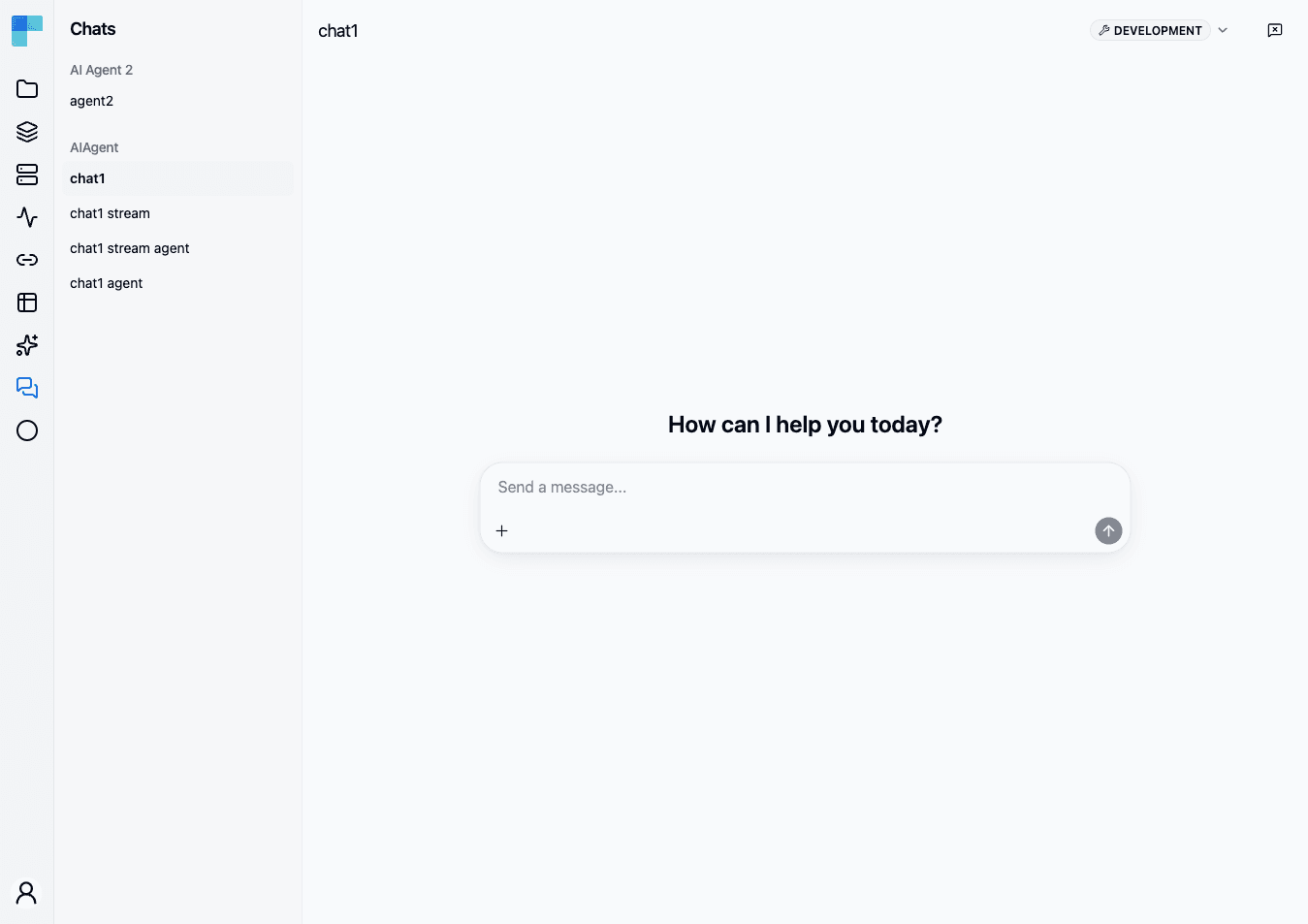
Chats in the automation sidebar is ByteChef's hosted chat interface: a page that lists every deployed workflow you can hold a conversation with, and lets you exchange messages and files with one. It is the end-user counterpart to the editor's Test with Chat panel - same conversation, but against a deployed workflow rather than a draft.
What makes a workflow appear here
The sidebar is not a list of everything you have deployed. A workflow shows up only when all of the following hold, and it disappears the moment any one of them stops:
- Its project deployment is enabled, in the environment selected in the page header.
- The workflow itself is enabled within that deployment - a deployment can carry workflows that are individually switched off.
- The workflow has a Chat trigger.
- That trigger's Mode is Hosted Chat. Choosing Embedded Chat deliberately keeps the workflow off this page - that mode exists for chat interfaces you build yourself.
- The trigger resolves to a webhook URL, which it does once the workflow is deployed.
Nothing listed?
Work back through that list in order. An enabled project deployment whose workflow is switched off, and a chat trigger left on Embedded Chat, are the two that most often look correct at a glance. The list is also environment-specific: a workflow deployed only to Development will not appear while the header is set to Production.
Matching workflows are grouped by project, and each entry is labelled with the workflow's label.
Holding a conversation
Pick a workflow from the sidebar and type into the composer. Each message starts a run of that workflow, with your text and any attachments delivered as the trigger's output, so the workflow sees the same payload it would from any other caller.
Attachments. Images and text files can be attached to a message and arrive as the trigger's
attachments.
Streaming. If the workflow contains an action that streams its response - an AI chat action, for example - the reply appears token by token as the run produces it. Otherwise the reply appears in one piece when the run finishes. You do not configure this: ByteChef detects it from the actions in the workflow.
Questions from the workflow. A workflow that pauses to ask you something renders the question in the thread; your next message answers it and the run resumes where it stopped, instead of starting a new one.
One conversation at a time
A run in progress locks the page: the other chats in the sidebar are disabled until it finishes, and navigating to one sends you back to the running conversation. This is deliberate - it keeps a reply from arriving in a thread you have already left.
What is kept, and what is not
This is the part worth knowing before you rely on the page.
Conversation history is held in the browser, not on the server. Switching between chats in the sidebar preserves each thread, so you can move between them and come back. But leaving the Chats page entirely discards every thread - navigating to Projects and back gives you empty conversations. Nothing is persisted for later retrieval.
"Clear messages" starts a new conversation, not just a clean view. The button in the page header (enabled only when no run is in progress) drops the transcript and mints a new conversation id. For a workflow that keeps chat memory keyed on that id, the next message begins a genuinely fresh conversation with no recollection of what came before - which is usually what you want when testing, and worth knowing when you did not intend it.
If you need a durable record of what a chat run did, look at the run itself under Workflow Executions rather than at the chat thread.
Related
- Chat trigger reference - the trigger's modes and output shape
- Deploy Workflows - enabling a deployment and its workflows
- Workflow Executions - the runs a chat produces
How is this guide?
Last updated on