
Connected Users
View and manage end users who have connected integrations through your embedded iPaaS.
This page covers the ByteChef console view. For how a Connected User record comes into existence and how your backend attaches a name, email, or its own metadata to it, see Syncing Connected Users.
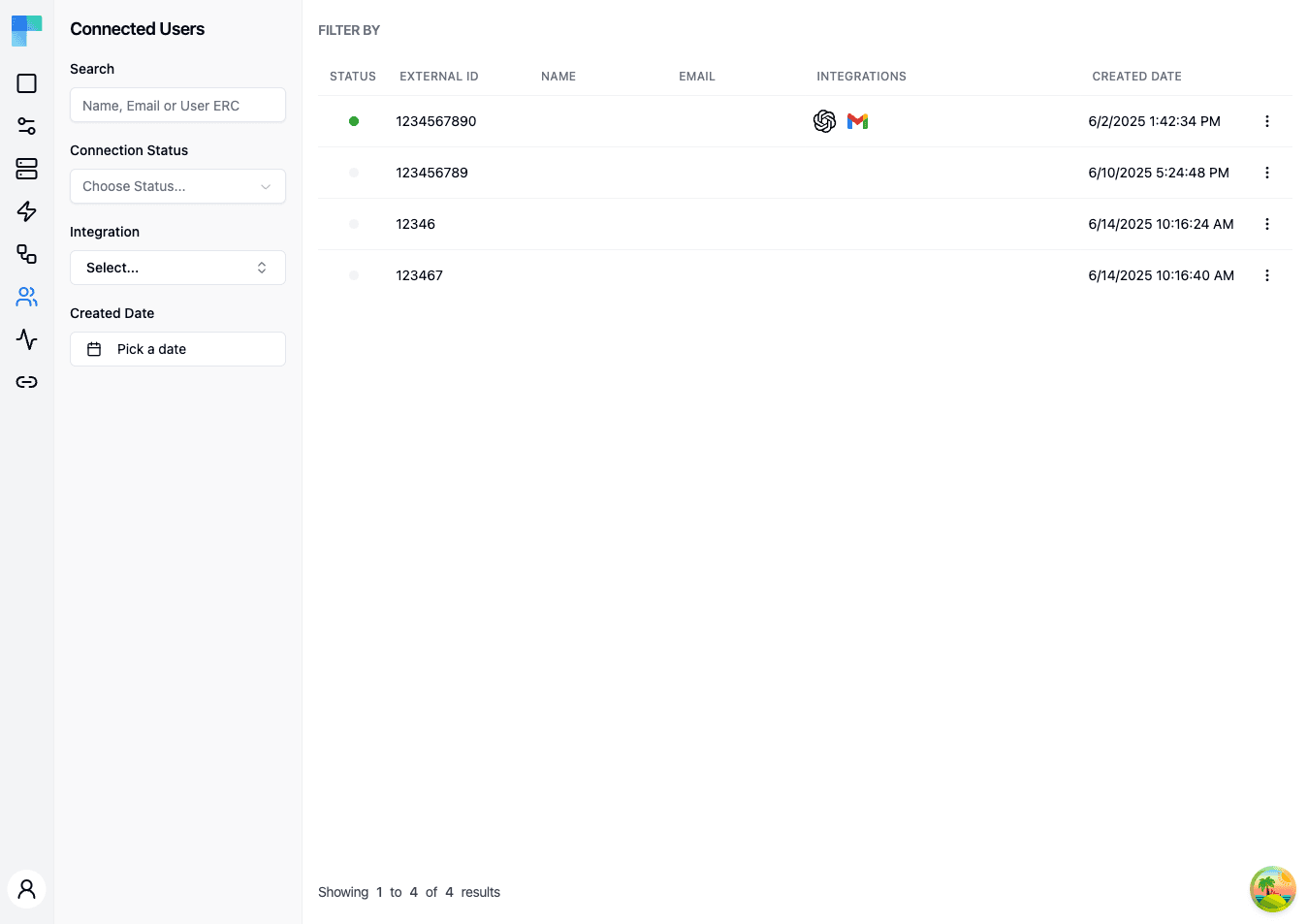
Key Features
| Feature | Description |
|---|---|
| User table | A paginated table of all connected users with key details. |
| Search | Search by name, email, or External Id - the unique identifier your application assigns to each user (also referred to as "User ERC" in the search placeholder). |
| Status filtering | Filter by connection status (Valid or Invalid). |
| Integration filtering | Filter by specific integration to find users of a particular service. |
| Date range filtering | Filter by the date range when users were created. |
| Pagination | Navigate through large user lists with page controls. |
Table Columns
| Column | Description |
|---|---|
| Status | Connection credential status indicator -- green for Valid, gray for Invalid. |
| External Id | The unique identifier your application assigns to the user (this is the sub claim of the JWT you sign with your Signing Key). |
| Name | The user's display name. |
| The user's email address. | |
| Integrations | Icons representing which integrations the user has connected. |
| Created Date | When the connected user record was created. |
How to Use
Viewing Connected Users
- Navigate to the Connected Users page from the Embedded sidebar.
- The table displays all connected users for the current environment.
- Click on a user row to open a detail sheet with full information about their connections and integrations.
Filtering Users
Use the left sidebar filters to narrow the user list:
- Search -- enter a name, email address, or External Id (User ERC) to find specific users.
- Connection Status -- select "Valid" or "Invalid" to filter by credential status.
- Integration -- select an integration to show only users who have connected that service.
- Created Date -- pick a date range to filter users by when they were created.
Click Filter to apply the selected filters.
User Details
Click on a connected user row to open a side sheet. At the top is a Profile header card with the user's ID, name, email, external ID, and account metadata, followed by three tabs:
- Integrations tab (default) -- every integration the user has connected, with the integration's status and the workflows enabled for each integration instance. Use this tab to inspect and manage the connect-flow side of the relationship.
- MCP Servers tab -- the MCP servers this user has access to, so you can control which tools are exposed to that user's AI agents. Each server card shows how many component tools and workflow tools it exposes to the user, with a switch that turns all of them on or off at once. Expand a card to see its Component Tools and Workflow Tools, grouped by component, each with its own switch. A workflow tool's switch is the same setting as that workflow's switch on the Integrations tab, so changing one changes the other. Delete removes the server's component tools for this user; it isn't offered for a server that exposes workflow tools, because those stay visible until the workflows are removed from the server on the MCP Servers page. Shows "No MCP servers expose this user's integrations." when none apply.
- Automation Workflows tab -- the automation workflows associated with this user across all projects they have access to, listed flat with the workflow label, the version currently in use for this user, and the last execution date (or "No executions" if it hasn't run yet). The tab shows "No automation workflows." when nothing is associated.
The sheet header also carries actions for the user:
- Enable / Disable -- a button that toggles the user's active state. A disabled connected user cannot start executions; the button label flips between Enable and Disable based on the current state.
- Delete -- opens a confirmation dialog that removes the connected user and their integration instances.
The sheet stays open across outside clicks (only the close button or the Escape key dismisses it), so you can keep it open while navigating other UI.
Row actions menu
Each table row has an ellipsis (⋮) menu with the same three actions available without opening the sheet:
- Open -- opens the detail sheet for that user.
- Enable / Disable -- toggles the user's active state.
- Delete -- removes the user record along with their integration instances (the workflows they had enabled stop executing). A confirmation dialog guards the action.
Environment Selection
Connected users are scoped to the current environment. Use the environment selector in the left sidebar header, beside the ByteChef name, to switch between Development, Staging, and Production to see users in each environment.
How is this guide?
Last updated on