
MCP Servers
Expose integration components as MCP-compatible tool servers.
Coming soon
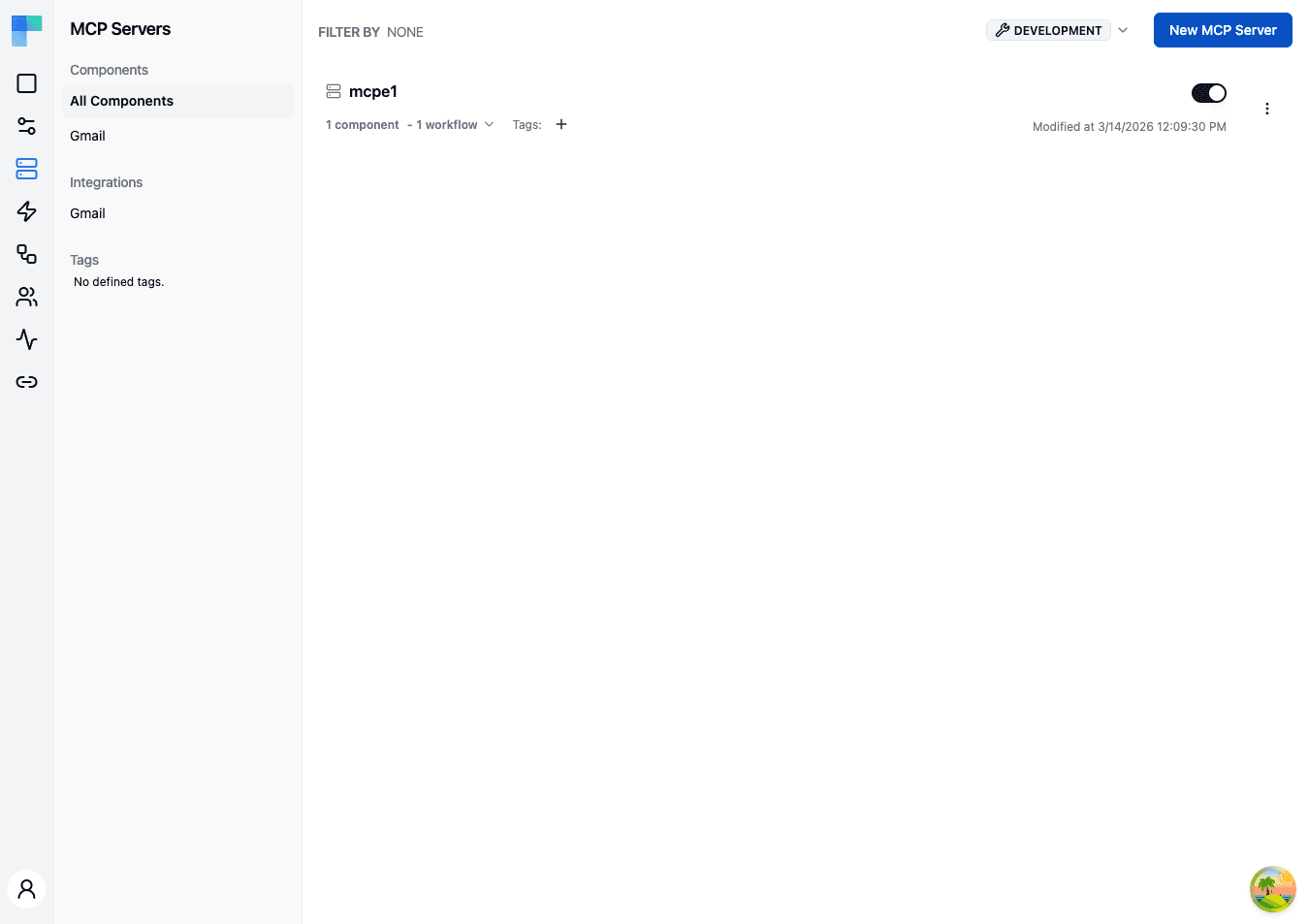
Key Features
| Feature | Description |
|---|---|
| Component filtering | Filter MCP servers by the components they expose using the left sidebar. |
| Integration filtering | Filter by the integrations associated with the server. |
| Tag filtering | Organize and filter servers by assigned tags. |
| Environment selector | Choose the environment (e.g., Development) in the left sidebar header. |
| Enable/Disable toggle | Activate or deactivate an MCP server without removing it. |
MCP Server Details
Each server in the list displays:
- Name -- the server name.
- Component tool count -- how many component actions the server exposes as MCP tools, across all of its components.
- Workflow tool count -- how many workflows the server exposes; each workflow becomes one tool.
- Tags -- assigned tags shown as badges.
- Enabled/Disabled status -- whether the server is currently active.
- Last modified date -- when the server was last updated.
How to Use
Creating an MCP Server
- Click the New MCP Server button in the top-right corner.
- Provide a Name for the server.
- Optionally toggle Require authentication (on by default for a new server) and Enforce tool authorization. The second depends on the first: turning Require authentication off disables Enforce tool authorization and clears it, because there is no caller identity to authorize against.
- Click Save to create the server.
The server is created empty - you add the components and workflows it exposes from the server row afterward (see below). Assign tags inline on the server row once it exists.
Adding components and workflows to a server
Open the server row's ellipsis (⋮) menu:
- Add Component -- opens a two-step dialog: Select Component (pick the third-party component) then Select Tools from <component> (choose which of its actions are exposed as tools, and configure each tool's parameters).
- Add Workflows -- pick an integration instance configuration, then the workflows within it to expose. Only workflows carrying a New Workflow Call trigger are eligible; a configuration with none shows "No tool-eligible workflows found".
For each exposed component action, you choose which parameters you fix yourself and which the connected agent fills at call time, using the fromAi(...) expression - the same mechanism as attaching tools to an AI Agent. See Supplying tool parameters with fromAi for the syntax.
Managing MCP Servers
Each server row has an Enabled switch and an ellipsis (⋮) menu:
- Enable/Disable -- flip the switch on the row to control availability.
- Edit -- update the server name and authentication toggles.
- Delete -- remove the server (confirmed via an alert dialog).
Tags are edited inline on the server row.
Filtering MCP Servers
Use the left sidebar to filter the server list:
- Components -- select a component name to show only servers that expose that component.
- Integrations -- filter by integration.
- Tags -- click a tag to filter by that tag.
Environment Selection
Use the environment selector in the left sidebar header to switch between environments. MCP server configurations are scoped per environment.
Connecting to a server
Each server is reachable at /api/embedded/{secretKey}/mcp. A request selects the environment with the X-Environment header; the tools it sees are scoped to that environment.
Authentication
The Require authentication toggle (set when creating or editing the server) controls what a request must present:
-
On (the default for newly created servers) - the request's
Authorizationheader must carry one of:- A ByteChef-signed JWT minted with the tenant's signing key. The JWT's
kidheader identifies the tenant and itssubclaim carries the external user id. - A JWT issued by the tenant's configured external identity provider, via OAuth2 federation.
Either credential resolves the caller to a ConnectedUser.
- A ByteChef-signed JWT minted with the tenant's signing key. The JWT's
-
Off - the endpoint serves the request using the URL secret alone. No credential is required and no ConnectedUser is resolved, so a tool that needs a connection returns a setup URL instead of executing.
Servers created before this setting existed default to off, so they keep working unchanged.
When a tool needs the user's account
A tool that needs a connection does not run until the ConnectedUser has connected that integration in the request's environment. Until then, calling it returns a connection_required result instead:
{
  "error": "connection_required",
  "message": "The googleMail integration is not connected for this user. To connect, visit: ...",
  "setupUrl": "https://your-bytechef-host.example.com/connect.html?token=..."
}
The message asks the agent to show the link to the user as a markdown link labelled Connect <component> rather than as the raw URL. A host that renders tool results itself can read setupUrl directly, for example to show a Connect button.
setupUrl opens ByteChef's hosted connect page, which shows the same Connect dialog your app uses. Its token identifies the user, the integration and the environment, and is valid for 10 minutes. An expired link shows Link Expired, and the next call to the tool returns a fresh one. When the user closes the dialog, the page tells them they can close the tab and return to the application that sent them there.
Which tools a user's agent sees
Before a user connects an integration, the server lists every tool it exposes for that integration, and each one returns connection_required when called.
Once the user has connected, the server lists only the tools that user has enabled. Tools start disabled. The user enables them on the Tools tab of the Connect dialog, which lists the server's component tools and workflow tools for that integration. The tab appears only when an MCP server exposes something for the integration.
To switch a server's tools off for a single user, use the MCP Servers tab in Connected Users.
Tenant scoping
A session only exposes the tenant's own workflows, connections, and execution history.
How is this guide?
Last updated on