
Automation Hub
Embed a ready-made catalog where your end users browse your automation templates, activate them with their own accounts, and manage what is running.
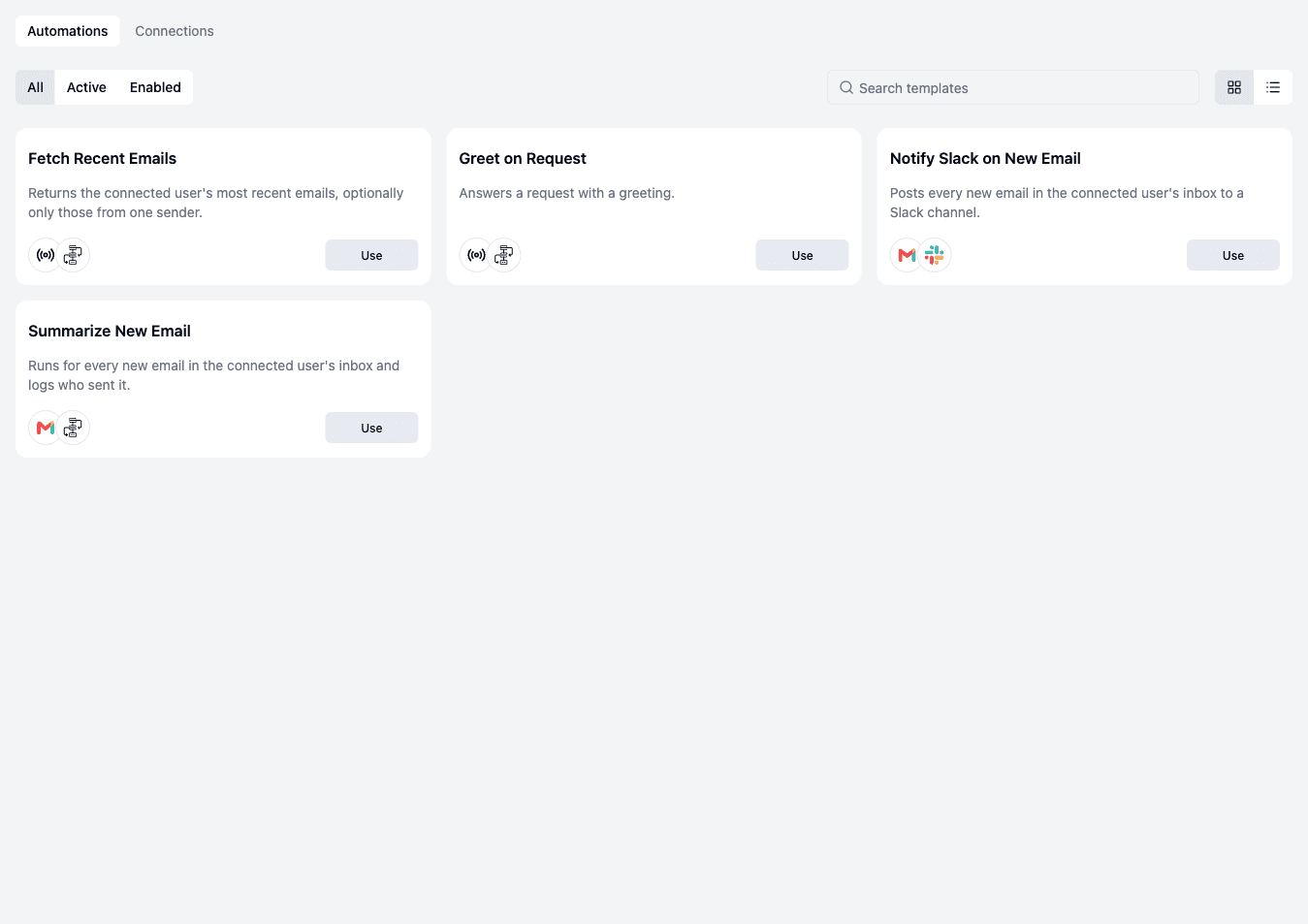
The Automation Hub is an end-user surface you drop into your product with one React component. Your connected users see the automation templates you released to their environment through a configuration, activate one in the activation dialog, and turn their automations on and off. They do all of this without leaving your app or seeing ByteChef.
It renders in an iframe and has two tabs:
- Automations - the template catalog, plus the user's own automations.
- Connections - the third-party accounts the user has connected, and the ones you share with every user.
Before you start
- A Signing Key and a backend that mints end-user JWTs - see Installing the SDK.
- At least one published automation project with an enabled configuration in the environment the hub shows. The hub lists the templates from the version that configuration points at; a project that was never published, or has no enabled configuration there, shows no templates. See Automations.
- In production, your app's origin in
BYTECHEF_EMBEDDED_ALLOWED_PARENT_ORIGINSon the ByteChef server - see the embed handshake.
Add the hub to your app
'use client';
import {AutomationHub} from '@bytechef/embedded';

export function AutomationsPage({jwtToken}: {jwtToken: string}) {
    return (
        <AutomationHub
            baseUrl="https://your-bytechef-host.example.com"
            className="h-[800px] w-full"
            environment="PRODUCTION"
            jwtToken={jwtToken}
            tabs={{connections: true, newWorkflow: false}}
            theme={{borderRadius: '0.5rem', mode: 'light', primaryColor: '#2563eb'}}
        />
    );
}
The component renders automation-hub.html from your ByteChef host, waits for the page's EMBED_READY message, and answers with the props below. When a prop changes later, including a refreshed jwtToken, it sends the new values to the iframe without reloading it.
Props
| Prop | Type | Default | Description |
|---|---|---|---|
jwtToken | string | - | Required. The connected user's signed token. |
baseUrl | string | https://app.bytechef.io | Your ByteChef host. |
environment | 'DEVELOPMENT' | 'STAGING' | 'PRODUCTION' | 'PRODUCTION' | The environment whose catalog and connections the hub shows. |
className | string | - | Class for the wrapping element. Give it a height; the iframe fills it. |
tabs | {automations?, connections?, newWorkflow?} | all true | Which parts of the hub are shown. See Tabs. |
connectionDialogAllowed | boolean | - | Deprecated. Set the connectionDialogAllowed claim in the user's JWT instead (see Connection creation). While the prop is still accepted, false turns connection creation off, but true cannot turn on what the token turns off. Passing it logs a deprecation warning. |
editWorkflowAllowed | boolean | true | Whether users can open copies of your templates in the builder: Edit workflow in the activation dialog, and Customize on a card. Edit workflow is never offered for templates from code-workflow projects. Blank automations stay editable while tabs.newWorkflow is on. |
includeComponents | string[] | - | Restricts the components offered in the builder to these names. |
defaultLayout | 'grid' | 'list' | 'grid' | The initial catalog layout. |
layoutSwitcherAllowed | boolean | true | Whether users can switch between grid and list. When false, defaultLayout always applies. |
theme | AutomationHubTheme | - | Colors, font, and radius. See Theming. |
The component has no callbacks; everything the user does is saved through the embedded API.
Connection creation
Whether users can create new connections in the hub is set by the connectionDialogAllowed claim of the JWT you pass as jwtToken (see Generate a JWT). A token without the claim allows it. With false:
- the builder the hub opens offers only existing connections, and the server rejects creating a connection with
403; - the activation dialog's Connect step hides the Connect button, so users can only pick an existing connection. This is enforced only in the UI, because those are integration instance connections.
The hub and the builder it opens use the same token. To give the hub and a separately embedded EmbeddedWorkflowBuilder different values, mint a separate token for each.
Tabs
| Key | Controls |
|---|---|
automations | The Automations tab: the template catalog and the user's automations. |
connections | The Connections tab. |
newWorkflow | The New Automation button, which creates a blank automation and opens it in the builder, and the My Automations section for automations that do not come from a template. |
The tab bar appears only when both automations and connections are on. If a user lands on a disabled tab, the hub redirects to the first enabled one. With both off, it shows that no sections are enabled.
What your users see
The catalog
Each template released to the environment through a configuration appears as a card with its label, description, and the icons of the components it uses. Users can search by label and filter by All, Active (they have an automation for the template), or Enabled.
A template the user has not activated shows Use, which opens the activation dialog. Once activated, the card shows the automation's version, an Enable / Disable button, and a menu:
- Settings - edit the workflow inputs. Shown only when the template has inputs.
- Customize - open the user's copy in the builder. Shown only for a copy, never for a reference (see Copies and references).
- Remove - delete the automation after a confirmation.
Enable is unavailable for an automation that has not been published from the builder yet, and for one whose template is gone (see Needs attention). If enabling fails because a connection or a required input is missing, the hub says which and, for an input, opens the settings dialog.
The activation dialog
The activation dialog has up to three steps. It is the same dialog you can open from your own page - see Activate templates from your app.
- Connect - one row per component that needs a connection. Connect reuses the user's existing connection for that integration without showing a form when its credentials are valid; otherwise it opens the Connect dialog for the integration behind that component (an existing connection with invalid credentials is reconnected in the form). When connection creation is turned off, Connect is hidden and the user picks an existing connection. The new connection is an integration instance connection that the user's integrations share. If the component's integration has no enabled configuration in the environment, the row shows
<App> isn't set up yet — ask your administratorand activation cannot continue. Skipped when the template needs no connections. - Configure - one field per workflow input. Required inputs must be filled. Skipped when the template has no inputs.
- Activate - the hub gives the user a reference to the template with the chosen connections and inputs, and turns it on. If this fails, the reference is removed so the user can try again.
When it finishes the user sees "Your automation is running". With editWorkflowAllowed, Edit workflow instead copies the template and opens the copy in the builder. Edit workflow is not offered for templates from code-workflow projects; they can only be activated as references.
The builder
Customize, Edit workflow, and New Automation open the embedded workflow builder inside the hub, with a back arrow to the catalog. The builder honors the hub's connection creation setting and includeComponents. Users publish from the builder header before they can enable the automation.
The builder opens only what a user may edit: a copy of a template needs editWorkflowAllowed, a blank automation needs editWorkflowAllowed or tabs.newWorkflow, and a reference never opens. Otherwise the hub returns to the catalog.
Connections
The Connections tab lists the user's connections with their name, app, creation date, and a Shared badge on the connections you share with every connected user. Users can Reconnect or Delete their own connections; shared connections are read-only. A connection that an enabled automation still uses cannot be deleted.
Reconnect opens the Connect dialog in reconnect mode, with the same credentials form as the first connect. It is offered on connections the user can edit when an integration can be resolved for them: the integration whose instance owns the connection, or otherwise an integration for the same component. For a connection backed by an integration instance, reconnecting restores the authorization parameters of the integration's configuration, such as an OAuth2 app's client id and secret, unless the form supplies them.
New connections are created from the activation dialog or the builder, not from this tab. See Connections.
Needs attention
Automations created from a template that is no longer available, or that need action from the user, appear under My Automations with a Needs attention badge and a reason, such as a connection to reconnect or an input to fill in. An automation also needs attention, with the reason "turned off by the administrator", when its configuration or its workflow is disabled or the configuration is deleted. It comes back as the user left it once the administrator turns it on again or recreates the configuration.
Copies and references
An automation a user activates in the hub is a reference: it points at your catalog workflow rather than duplicating it, and holds only the user's connections and inputs. References follow the configuration their user is assigned to, not the latest publish: when you point that configuration at another version, or move the user to another configuration, they follow it, and when you remove the workflow from that version or delete the project they are disabled and marked as needing attention. If an administrator turns off the configuration or the workflow, or deletes the configuration, the reference is switched off and marked as needing attention with the reason "turned off by the administrator". Turning it back on restores what the user had chosen. Outside the hub, create references with the provision operation in the API reference.
Edit workflow makes a copy instead: the user's own editable workflow, made from the version of your template that the environment's configuration points at. Moving the configuration to another version does not change existing copies, and copies keep working if the project or workflow is later turned off; only new activations and new copies are blocked, with an error. Turn editWorkflowAllowed off to keep users on references only.
Controlling what appears in the hub
- Enabled configuration. A project appears in the hub for an environment only when it has an enabled configuration there. The hub shows the templates of the version the configuration points at, minus workflows switched off in it. Publishing alone changes nothing. See Automations.
- Which configuration a user sees. An environment can have several configurations of a project, and each user sees the one they are assigned to. New users are assigned the first time they activate or copy a template: they get the enabled configuration with the highest version whose assignment rule lets them in. Users already assigned stay on their configuration when you publish or enable another one, until you move them. A user for whom no configuration qualifies does not see the project.
- Permission expressions. A project's expression decides which connected users see the project, and a workflow's expression decides which of its templates they see. A user cannot activate a template their expression hides. See Permission Expressions.
- Show in Automation Hub. Each configuration has this switch, on by default. It controls whether the project is listed by the API, so it decides whether the project appears in the hub and in your own UIs built on
GET /api/embedded/v1/automation/projects. Turn it off for flows you only activate by UUID; the configuration row then shows a Hidden from hub badge. The workflows of a hidden project can still be provisioned by UUID. Turning off the configuration or a workflow is what stops provisioning and running.
Theming
theme restyles the hub; unset keys keep the default look.
| Key | Effect |
|---|---|
mode | 'dark' for dark mode; anything else is light. |
primaryColor | Buttons, focus rings, and brand accents. The text color on top of it is chosen for contrast. |
fontFamily | The font. It must be one the iframe can load - a system or web-safe font; your page's @font-face rules do not cross the iframe boundary. |
borderRadius | Corner radius, in px, rem, em, or %. |
surfaceColor | The page background. |
cardColor | Cards, dialogs, and popovers. |
activeBorderColor | The border of enabled automation cards. |
enableColor / disableColor | The Enable and Disable buttons. |
onAccentColor | Text on accent-colored surfaces. |
segmentColor | The selected item in segmented controls. |
cssVariables | Any other CSS custom property, as {'--name': 'value'}. |
Colors are hex values or any value the browser accepts as a CSS color. The same theme applies inside the builder opened from the hub. It also styles the activation dialog and the Connect dialog the hub opens; see Theming and Localization.
Related
- Integration Marketplace - the embeddable catalog of integrations.
- Activate templates from your app - open the activation dialog from your own page.
- Automations - authoring and publishing the templates the hub lists.
- Troubleshooting - a blank iframe or a hub stuck on loading.
How is this guide?
Last updated on
Automation editor
Author workflow templates in the Automation editor and let connected users refine their own workflows in the embeddable white-label Workflow Builder.
Activate templates from your app
Open the activation dialog from your own page so a connected user can connect accounts, fill in inputs, and turn on a published automation template.